
The ultimate guide to using your laptop as a desktop
I used to be a desktop user with a laptop, now I'm a laptop user that uses his laptop as a desktop. Here's everything you need to know about the laptop-as-a-desktop experience.
For most of the time I've been into PCs, I've been a desktop guy; it's where the performance, the value, the customization, and the upgradability has always been. 2017 through 2022 was a pretty exciting time to be a desktop user (as long as we overlook insane prices for certain components in 2018 and 2020), and I personally enjoyed a series of really meaningful upgrades. Someone who built an AM4 PC in 2017 and focused just on CPU, GPU, and storage upgrades would have had some incredible bang for buck.
By contrast, laptops range from sufficient to terrible in those four categories. There's an absolute performance limit for laptops since the top-end desktop configurations can consume close to 1,000 watts while even the beefiest laptops are limited to roughly 300 or so watts. About the only parts that can be upgraded on a laptop are storage and RAM, and oftentimes it's just storage, which is obviously bad for both upgradability and value. And even with Framework's modular system, there's still very limited customization options.
Yet, laptops have one thing that a desktop can't: portability. The freedom of just being able to move a PC without much hassle is the reason for the laptop to exist. And also, for many people the downsides of an all-in-one PC are outweighed by the fact that laptops are more simple to buy and maintain, are status symbols depending on the brand, and are sometimes the best way to get an Apple PC considering Apple sometimes forgets to update the iMac and Mac Mini every generation.
I've always had a laptop alongside a desktop, it's kind of a hard thing to avoid for college students, writers, and people who want to game at places other than home at a desk; considering I belong(ed) to all three categories, having a laptop was close to mandatory. And 2020 onwards has been a great time for laptops, with notable product launches like Ryzen 4000, 12th Gen, the RTX 40 series, and a slew of chips with impressive performance on the CPU and GPU sides of the equation.
The most tantalizing thing for me has been the idea of a laptop that's also my desktop. It would mean a seamless transition between the mobile and stationary PC experiences with just one local file system, one operating system session, and one set of components.
And as of last year, this is the exact experience I've switched to! I got rid of my desktop a year ago and went all in on using my laptop as my only normal PC (emphasis on normal, more on that later). If you're considering a similar move and want your laptop to do double duty, here's some findings I've made in the past year that you'll hopefully find useful.
What kind of laptop to get
This might not be the most intuitive thing to consider, but at least to me some laptops are more suitable for a desktop-like setup than others. There are some features that range from nice-to-have to borderline mandatory. Sure, technically any laptop with at least one video output can be a desktop replacement, but for a good experience you'll want certain things.
You're gonna want Thunderbolt or USB4
The single most important thing a laptop needs for a seamless experience is a USB port with video output. Usually you'll find this in the form of USB4 or Thunderbolt (obviously 4 and 5 are newer but 3 should be good too even though it's older), but sometimes USB-C 3.2 ports will have DisplayPort. You'll want one of these ports so you can hook your laptop up to a dock that's connected to your peripherals and monitors (more on docks later).
Without a port that has lots of bandwidth and video support, you'll have multiple things to plug into your laptop; an HDMI or DisplayPort cable at the minimum, plus a USB cable for a dock without display capabilities (or multiple USB cables for all your peripherals, which sounds awful). This is no way to live in 2026.
Thankfully, it's not too hard to find one of these ports on modern laptops, but they're not super common in entry-level models unfortunately. If you're on a tight budget, it may be pretty difficult to find a laptop that has video over USB. But thankfully, this is more of a nice-to-have rather than a need-to-have. You can still get a USB dock, it just don't have video.
Use integrated graphics if possible
The next thing I'd recommend, and this may be a controversial take, is to avoid laptops with discrete graphics cards if possible. Just as a baseline, having to deal with two GPUs is not fun, especially when virtually every dGPU-equipped laptop is pairing an Nvidia chip with either AMD or Intel integrated graphics. And you will be using both GPUs; if you use just the dGPU, then battery life will be poor to just okay, but if you just use the iGPU, docked graphics performance will be trash (also you will have wasted several hundred dollars on a component you don't use).
Switching between two graphics chips is easier than it's ever been, but it's still not frictionless for a variety of reasons:
- If you want to game both on-the-go and while docked, you're doing one of two things. You could just use the dGPU for both, but the performance would be lackluster and the battery life would leave much to be desired. You could instead swap back and forth between the integrated and discrete graphics, which means mobile gaming sacrifices some performance for lots of battery life, but then you're also probably adjusting graphics settings all the time, perhaps also firmware settings for stuff like power.
- Docking a laptop with a discrete GPU using USB4 or Thunderbolt, as far as I am aware, means never having a direct connection to the dGPU. This isn't necessarily a problem, but this can potentially have a modest impact on performance and stability. Also, you'll be limited by the capabilities of the iGPU on certain video features (refresh rate, color, support for syncing technologies, etc). You might decide that, especially if you have just one monitor, that hooking up an extra connection to the HDMI or DisplayPort is worth it. Still, that's annoying.
- In some cases, depending on the dock and graphics card, a laptop can actually consume power at a higher rate than it's charging at, which is obviously bad since the whole point of docking is to, you know, not worry about laptop stuff. You could plug in the actual charger to prevent this from happening, but that's not exactly convenient.
And just generally, having a discrete GPU lowers battery life, can result in some buggy behavior, and costs quite a bit extra nowadays. Personally, I had a Lenovo IdeaPad Pro 5 with a Core Ultra 9 285H and an RTX 5050, and while the experience was good overall, these were the issues that turned me off to dGPUs. Battery life was the biggest issue really; it annoyed me that I lost battery life while gaming even though I was plugged, and to get acceptable battery life on-the-go I really had to slow down the 285H by a ridiculous degree just to offset the 5050's power drain.
I really only mention this stuff since modern integrated graphics provide an alternative. AMD of course has been a mainstay in this category and its APUs cover both the entry-level and the mid to high-end with the Ryzen AI Max series. Intel's new Panther Lake CPUs have some pretty good graphics that are entry to mid-range. Qualcomm's Snapdragon X and X2 chips are new to the scene but are pretty decent at the entry to mid-level. Apple's M-series has always been paired with fast integrated GPUs, though if you're wanting to game MacOS isn't exactly the best operating system. And finally, Nvidia is entering the arena with RTX Spark.
Personally, I think Panther Lake is probably the most well-rounded chip for an iGPU-only laptop. The CPU is good, the graphics (on the X7 and X9 models) are consistently fast and perhaps the best among the lightweight class, its efficiency and battery life are both great, and it's got good Windows and Linux support. My own laptop uses a Core Ultra X7 358H and it's definitely the best laptop chip I've ever used; it's not that much slower than the RTX 5050 I used to have either.
Ryzen is tried and tested but its product stack is in dire need of a new generation, and Strix Halo has middling battery life. Snapdragon is promising with its raw horsepower but the software support and driver maturity aren't quite there yet. RTX Spark will have some software issues like Snapdragon since they're both Arm-based (especially in respect to Linux), though I expect Spark to be received well thanks to great graphics performance; it is however very expensive and the CPU isn't super special. And Apple, well, that's more of a question on whether you like MacOS and gaming or not.
Beyond considerations about connectivity and graphics, there's not much else that could impact the laptop and desktop experiences in a significant way. Size, performance, price, and other factors are obviously important but not particularly relevant to what makes a laptop good or bad for a desktop replacement.
One disclaimer: there is a significant performance gap between the fastest laptops and the fastest desktops. It's just impossible to cram an RTX 5090 and a Ryzen 9 9950X3D2 into a laptop, let alone without reducing clock speeds and thus performance. If you honestly need this level of performance, you won't get it in a laptop, so this whole idea of using a laptop as your primary PC might not be right for you. But for most people, even a premium laptop is probably overkill.
What to look for in a dock
Docks are the crucial thing that allows a laptop to take the place of a desktop. They're essentially advanced USB hubs that include not just USB ports, but also video out, charging, Ethernet, and sometimes SD card slots, audio jacks, and other more optional I/O ports. A dock isn't technically required for the laptop-to-desktop experience, but it makes swapping between the two modes much easier and simpler by consolidating every connection down to one cable.
Today, there's a wide variety of docks that come in all shapes and sizes (literally I mean), are available across a range of prices, and offer different types and amounts of ports that may or may not support features you care about. While having lots of options is good, it does somewhat complicate the decision making process on which dock to buy.
Whether you choose a USB 3.2 or USB4 or Thunderbolt 3 or 4 or 5 dock doesn't necessarily matter a ton, though connections with more bandwidth will obviously be better for more peripherals, especially for stuff like storage. Docks with more premium versions of USB or Thunderbolt also tend to have more and better ports, and are naturally more expensive.
Compared to desktops, docks tend to have worse quantity when it comes to I/O. Midrange and high-end desktop motherboards can come with more ports than you know what to do with; by contrast, running out of ports is pretty easy with a dock. Whatever dock you select, you'll want it to have enough ports and then some so that you don't need to choose what peripherals are necessary, or turn around and buy a new dock or do something weird like plugging a USB hub into the dock (though for some peripherals that can be fine and cost effective).
Outside of port selection, there's two main specifications that you might care about. One of them is the power of the charger; the best docks can offer close to 200 watts but many will be closer to 100 or even less. The other is support for variable refresh rate (VRR) technologies like adaptive sync and FreeSync. Unfortunately, the situation with VRR and docks is really murky and literature on the topic is often contradictory; some docks say they support it but users report not having VRR, most of the time the manufacturer just doesn't talk about VRR support one way or another at all. That's all to say, you might need to give up VRR if you want to do this whole laptop-as-a-desktop thing.
Some monitors are also equipped with docks, a souped up version of monitors that sometimes include a dual-port USB hub. You might consider one of these if you want a cleaner desktop setup, but you'll have far less freedom since there aren't exactly a ton of monitors with integrated docks out there. Also, if you ever want to upgrade your monitor, you're getting rid of your dock too. And on top of all that, these displays can be really expensive, and not a great value considering the specifications of the screen and the dock.
Personally, I have a Razer USB4 dock that I've been using for a couple of years, including with my last desktop and the original SI testbench. I don't know if it's the best value dock you can use since it's $200, but I really like it since it has enough ports for everything, HDMI and DisplayPort, 100 watt charging, an on/off button, and one of the front USB-C ports even has 20 watt charging which is great for my phone. I don't get VRR unfortunately, but I don't game that much at my desk so it's not a huge deal.
I also have an Amazon Basics Thunderbolt 4 dock, which used to be like $170 but is now over $200. Compared to the Razer USB4 dock, obviously it has Thunderbolt 4 which is technically better (though in practice the difference doesn't really matter), and it has two dedicated Thunderbolt 4 out ports for stuff like video, 40 Gbps data bandwidth, and 15 watt charging. On the other hand, it only has five USB ports total (and that includes the Thunderbolt 4 ports, so someone with three monitors only has three USB ports), lacks a micro SD card slot, and just looks kinda ugly in general.
For budget docks, Ugreen's model 15534 seems pretty decent. It's about $40 as I'm writing this with a typical price of $60 according to Amazon, which is pretty good considering it sports five USB ports, two HDMI ports, full SD and micro SD slots, gigabit Ethernet, and up to 100 watt charging, with 85 allotted to the laptop (plugging in a charger will cost a USB port though). Ugreen and some other brands like Anker even do $20 docks that just do a single display out, a few USB ports, and Ethernet. Honestly, I'm pretty impressed with the selection of budget docks even if they're not fancy USB4 or Thunderbolt models.
How come you haven't mentioned eGPUs yet?
I'm sure at least one person reading this is wondering why I've pretended eGPUs don't exist. These are essentially docks and GPUs combined, and in theory solve the whole graphics problem I mentioned earlier. You can buy a thin-and-light laptop that's great when you're on the move, and when you dock you get to use a super powerful graphics card. It's the best of both worlds; so why haven't I even listed it out as an option?
Well, I'm gonna be honest: eGPUs kinda suck. Now, I haven't used an eGPU personally since like 2019, but as far as I am aware the situation has not changed much. There are basically three big problems with eGPUs: performance, price, and general use case issues.
Performance has always dogged eGPUs, it's just never been particularly good. Jarrod's Tech did a good round of tests to evaluate Thunderbolt 5 earlier this year and the results were dismal: the RTX 5090 running in an eGPU enclosure lost over a quarter of its performance versus a normal desktop with PCIe. I would really like to see if the performance degradation is less severe on slower GPUs, but I suspect it's not much better.
But the Thunderbolt 5 numbers aren't really what you should be looking at, because Thunderbolt 5 is presently only available on gaming laptops that already have powerful discrete GPUs. For eGPUs, Thunderbolt 5 is essentially irrelevant, and Thunderbolt 4 is what we have for the time being on the kinds of laptops you'd want to pair with an eGPU. And, well, the performance loss is more like one third than one quarter.
There is also Oculink, which provides more bandwidth and thus lowers performance loss, but right now the only devices that have native Oculink ports are certain handhelds and mini PCs. Now, any device without an actual Oculink port can still be hooked up, but this can only be done through an M.2 slot with PCIe. At least on thin-and-light laptops, this means opening up the laptop to connect the eGPU. While this may be an acceptable solution for some, this is not going to be acceptable for the rest of us who want a seamless transition between laptop and desktop modes.
If poor performance is the rock, high prices are the hard place. So, eGPUs roughly fall into two categories: the kind that's modular and upgradable (kind of like a desktop), and the kind that is a single all-in-one device that can't be upgraded (kind of like a laptop). The former kind tends to be cheaper, faster, and more customizable but is less portable while the latter is much more portable but isn't quite as fast and also costs more. Though, I have to be honest, I'm not sure if portability is that much of a selling point since a dGPU inside a laptop is going to be far more portable.
Barebones eGPU enclosures start at $100, and I really mean barebones here because you'll need to get your own PSU and GPU. The $100 models don't even come with an actual chassis for the PSU and GPU, they're just exposed; if you're into that, great, if not, you'll have to shell out probably $300 or more for something like a Razer Core X V2. The more expensive models may come with a PSU however, like Sonnet's models.
Then there's the all-in-one eGPUs, which include everything you need. Almost all of the ones you'll find use an RX 7600M XT, for whatever reason it just happens to be incredibly popular right now for this type of eGPU. The cheapest ones I can find right now are about $600, the performance is fine in a vacuum but sees a 20% reduction on USB4 according to Notebookcheck's review of a GPD model. I also saw an RX 7800M model and Asus has its XG eGPUs, but they're all over a thousand dollars, especially the Asus eGPUs.
Anyways, that's all to say that eGPUs are expensive. With the DIY method, you're looking at a minimum of $200 on top of what the GPU costs ($300 if you really want a chassis), and the all-in-one kind arguably has an even greater markup when you consider the 7600M XT eGPUs (at least according to Notebookcheck) perform noticeably worse than the Arc A750 and RX 7600, which in a normal would be like $200 cards but retail for like $300 or more now. The value for eGPUs is just not very good and never has been.
Even if we didn't care that much about performance or price, eGPUs still have issues. Compared to docks, eGPUs tend to cap out at just three USB ports, and may include one more connection on top of that for Ethernet or SD cards. Sure, there's plenty of video out, but unless you desperately need three or four monitors, I don't think you'll care much. The lack of USB ports makes eGPUs a non-starter for me even if I didn't mind spending lots of money for not that much more performance.
Stability and potentially buggy behavior is also something to consider. I'm sure things are better than back in 2019, but speaking from personal experience my AMD eGPU did not work perfectly. Specifically, there were issues getting everything to work properly after I plugged in or unplugged the eGPU. Having multiple GPU drivers probably didn't help. I'm sure it's not as bad today as it was nearly a decade ago, but I doubt it's now a perfectly seamless experience for everyone.
Also, and this is a pretty minor quibble, lots of eGPUs look kinda ugly. The desktop-style models either have all the components exposed or the chasses are just not very attractive. I really wouldn't want to put one of them on my desk next to my laptop. The all-in-one eGPUs, those look fine, some of them look cool even.
Personally, I think eGPUs need to solve at the minimum one of these issues to be really viable. I don't think we'll ever get a really cheap eGPU, it's kind of just the nature of the concept, but if we could get an interface that doesn't bleed performance, or an eGPU enclosure that has a truly good amount of ports and features, or at the very least less fugly models on the market, then maybe even I would consider trying an eGPU again.
So I have to choose between a great docked experience and a great mobile experience?
So this is a conundrum I've personally grappled with for a while, because there's just no good way to get the best of both worlds in a single device (unless you have a MacBook but then you have to use MacOS which for me is just a no). The fastest GPUs can't go into a thin-and-light laptop and also consume lots of power even when they're not being used, the fastest integrated graphics are in Strix Halo which is kinda old and also has meh battery life, and the next tier down has the battery life and the CPU performance but the graphics are relatively slow compared to the good stuff.
RTX Spark may be able to finally combine great all around performance with good battery life, but it'll be super expensive, and like Strix Halo the underlying technology is old at this point. So, we're all forced to choose which mode we want to prioritize, and which mode gets the short end of the stick.
However, I do think there's a workaround, or at least I found one that works for me. Let's start by thinking about this in terms of experiences. We want great battery life, great portability, great performance in normal applications, and great performance in games. A gaming laptop will struggle with the first and maybe second cases, while a thin-and-light will probably struggle with the last case and maybe the second-to-last case. It seems like you can choose, at most, three of these things.
Well I thought about it when I first switched to being a full-time laptop user, and I realized that there was a simple solution: use a dedicated device for one of these use cases. Now obviously, if we care about battery life and portability, our laptop choice is locked in, which means we're just lacking in gaming performance. To sidestep my laptop's lack of gaming prowess, I just repurposed my desktop as a HTPC.
I've got a Ryzen 7 7800X3D, 32GB of RAM, and an RX 9060 XT 8GB in my HTPC which runs Bazzite (same one I tested to see if 8GB wasn't enough VRAM), and I gotta say, I really enjoy the console experience. Obviously I prefer keyboard and mouse for most games still, but a controller is fine too, and couch gaming is honestly more comfortable than doing it at my desk; besides, my desk has a wireless keyboard and mouse and it's not too much hassle to bring them to the living room. For games where performance counts, it's a great experience since I can get higher framerates and greater visual fidelity.
And there's no reason why you can't do the same with a PS5 or an Xbox or a Switch. I've actually got a Switch 2 as well for Nintendo exclusives (gotta find time to play the new Fire Emblem that just came out), so even if I didn't have my HTPC I'd still be covered when it comes to games.
What really makes this whole thing work is that the gaming experience really is isolated from everything else you do on a PC. Really, graphics is the only crucial consideration for gaming, and discrete or high performance GPUs are best suited for stationary devices. You don't even have to do this with a HTPC, you could just build a gaming PC and stream it to your laptop using Moonlight, or plug your dock directly into the PC whenever you want to game on it. And this way, you can enjoy a UI really made for gaming, instead of negotiating with the same interface used for everything else.
Of course, this is not a perfect solution. The main problem is money: this is a multi-hundred dollar solution. Actually, that was more accurate back when I first turned my desktop into a gaming console, it could cost you like a thousand or more for a PC or console with the gaming performance you want. And having another device to handle is definitely less convenient.
Though, now that I think about it, this is almost the exact situation I used to be in when I had a desktop for desk things and a laptop for when I couldn't be at my desk. The twist is that I've flipped the roles of the desktop and the laptop around, with the laptop being for most uses cases and the desktop existing for just one. This arrangement is better I think.
I really can't think of a better solution that checks all the boxes. We really need a Strix Halo-like chip that has better battery life and won't cost a fortune to make this whole separate gaming PC/console thing unnecessary. Or maybe MacOS will suddenly become great for gaming. For the time being, I'm pretty happy with my HTPC and the Switch 2.
My personal laptop-to-desktop setup
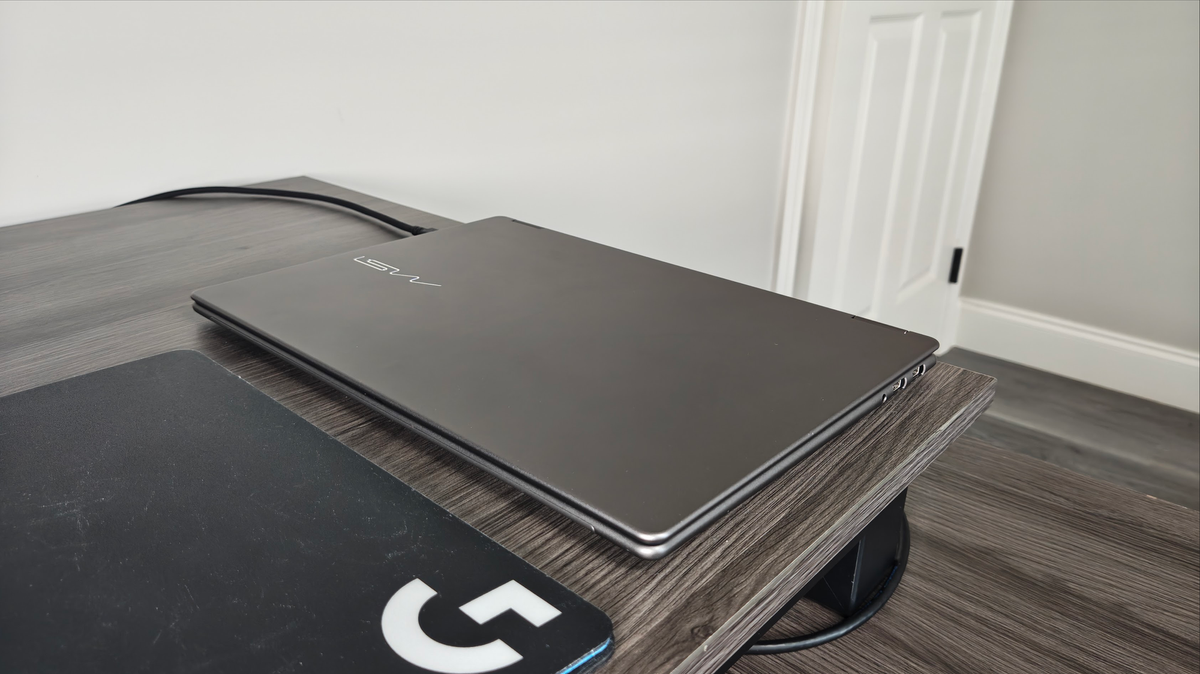
Alright, so let me close this out by reviewing my own setup. I've got the MSI Prestige 14 with the Intel Core Ultra X7 358H (same laptop I used for my CachyOS review), the Razer USB4 dock I mentioned earlier, a couple of 4K Samsung Odyssey monitors, and the usual peripherals like keyboard, mouse, headphones, and also a 4K Elgato webcam. So, pretty standard desktop stuff, and I really mean that because I did use to plug this thing into my desktop with the same peripherals.
To be honest, the day-to-day experience is hardly any different than when I had my desktop. Well, maybe in Windows 11 the general performance isn't quite as good, which is to be expected when the 7800X3D is running eight beefy desktop cores at a pretty high frequency, while the 358H has just four desktop-like performance cores running at typical laptop clock speeds, plus a dozen weaker efficiency cores. But in CachyOS at least, I don't really find myself thinking that things could be snappier, and it is my main OS now.
I suppose I do miss the physical features of a desktop, which is customizable and upgradable, while my laptop simply isn't. I'm really limited on storage because I have just the one M.2 slot, and if I didn't have my 2TB SSD I'd be in a bind since the original 1TB drive just wasn't enough. I can't upgrade anything else in this thing, so when I do want an upgrade, it'll have to be a whole new device. My laptop also can get louder since it has a weaker cooling solution; it's really easy to make a quiet desktop by contrast.
There are also some display-specific things I'm missing out on. My 4K monitors support 180Hz but it's not possible to do 4K180Hz over USB4. Not a huge deal since I still have 120Hz, it's just a shame I'm limited. The lack of adaptive sync is more important to me, though personally I really don't game at my desk anymore, but maybe I would a little if I didn't have to worry about screen tearing or V-sync.
And I guess firmware stuff on desktops is simpler? The BIOS tends to have all the settings you'd ever care about free to peruse and alter, while laptops are more locked down and sometimes have important settings located in a Windows app. I really can't think of anything more I'm missing from my desktop, switching to a laptop really hasn't been much of a downgrade at all.
Anyways, I hope you all find this guide useful. If you're in the same boat I'm in and ditched your desktop for a dock and a laptop, let me know if I forgot to mention anything by leaving a comment. If you're wanting to make the switch and got questions, you can also comment down below.